
Numbers
Voice → Numbers lists your numbers:- on your own FireTone, every number in your organisation, with its monthly rental;
- on FireFlo’s FireTone, the numbers FireFlo has given your account. To get one, ask support@fireflo.au.
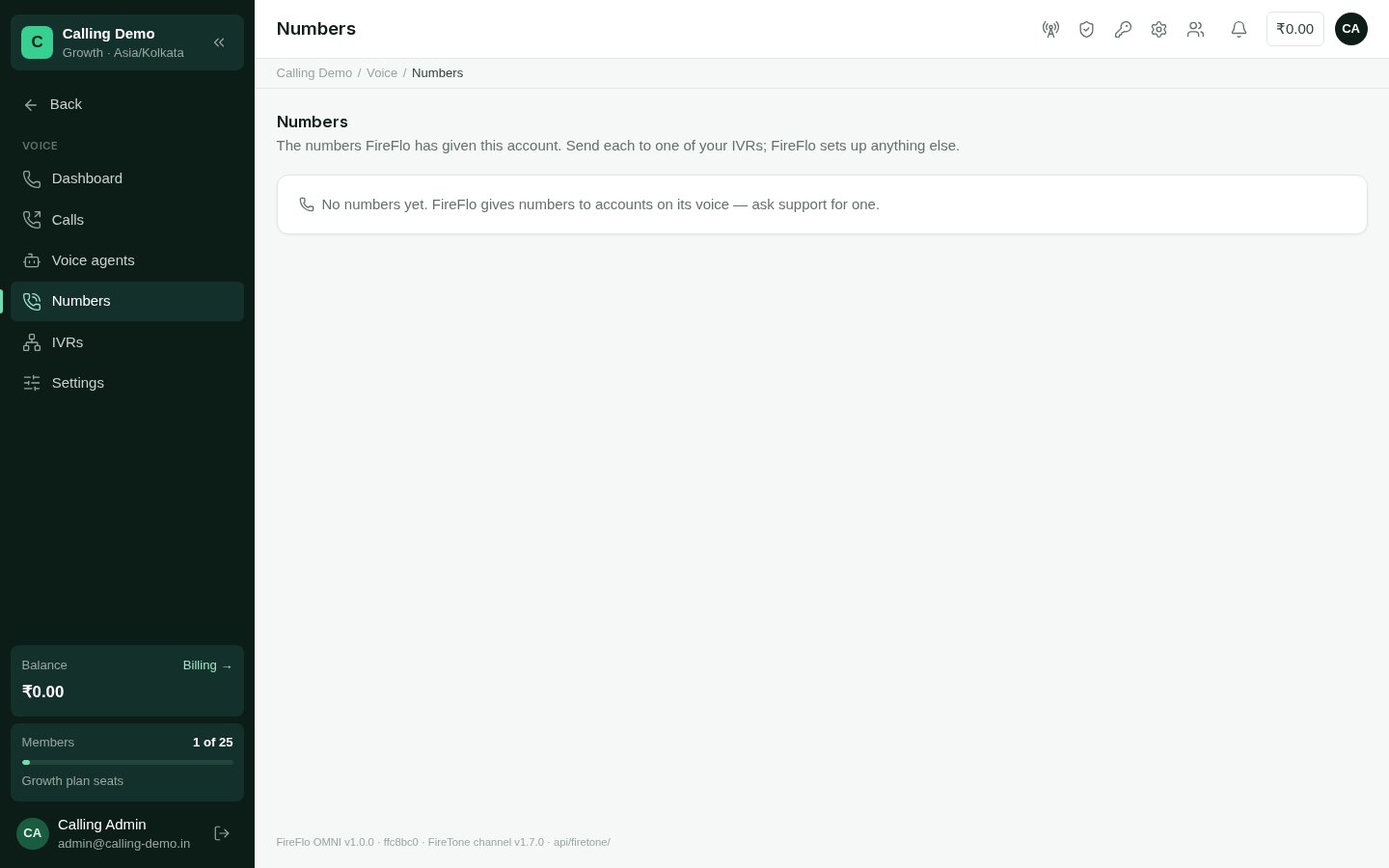
Voice numbers: where each number's calls go, whether it is in service, and which one calls show.
On your own FireTone, numbers are added in FireTone itself. If you have no IVR yet, the
page points you to make one first.
When FireFlo takes back a number it gave your account, the number also goes out of
service.
IVRs
Voice → IVRs lists your IVRs with their standing: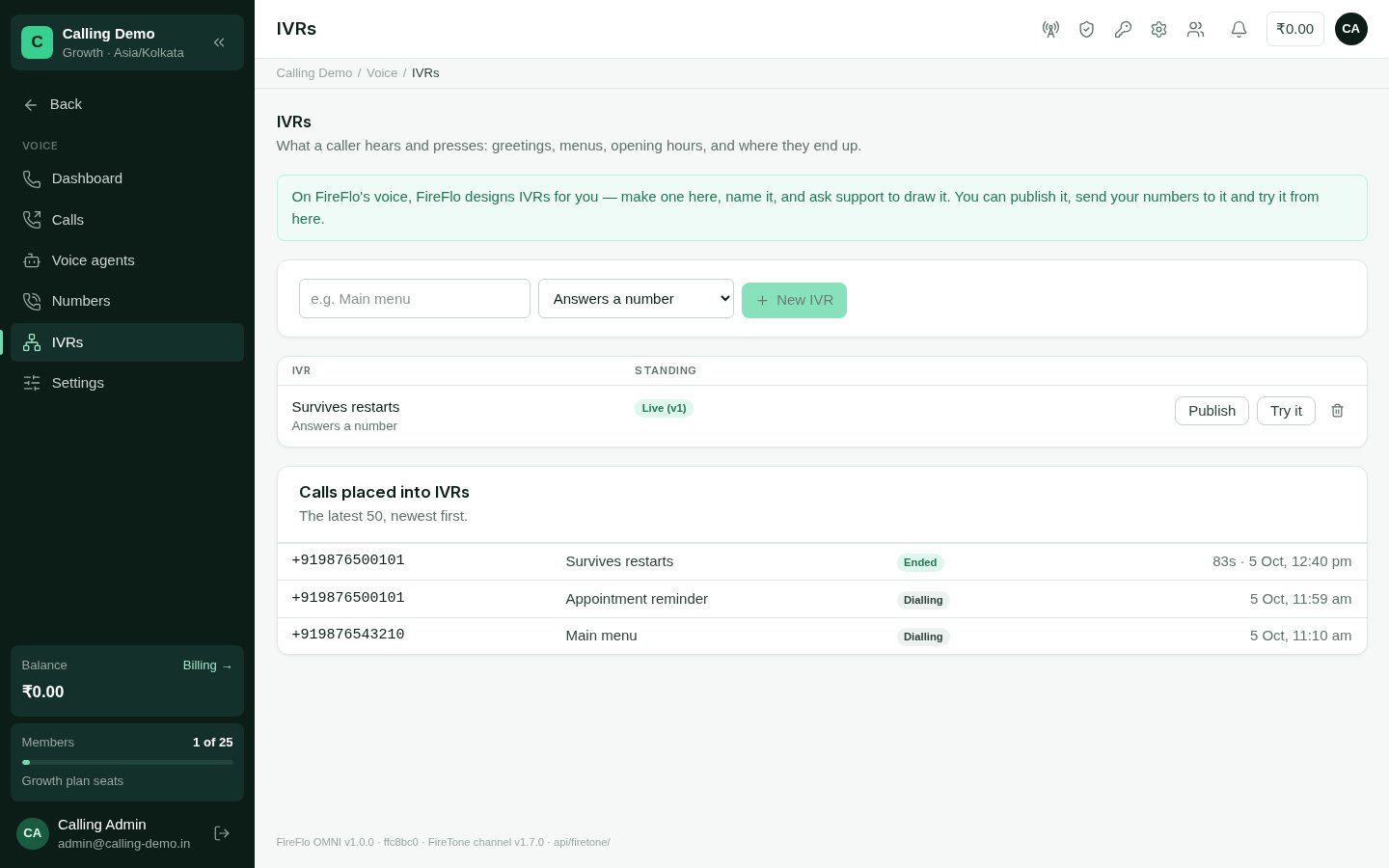
IVRs, with their standing and the calls placed into them.
Make and publish an IVR
1
Make it
Give the new IVR a name and choose when it runs: Answers a number (for calls
that ring in) or Runs on calls you place (for ringing people into it, and for
voice broadcasts).
2
Design it
Design opens FireTone’s IVR designer in a window of its own, through a one-time
link. If nothing opens, allow pop-ups for OMNI and try again. OMNI picks up what you
save there.
3
Publish it
Publish asks FireTone to check the IVR first. If it finds a problem, the IVR isn’t
published and OMNI says which step and why; if it has only a warning, the IVR goes
live and OMNI lists what is worth fixing.
4
Send a number to it
In Voice → Numbers, set the number’s Calls go to to the IVR.
On FireFlo’s FireTone, FireFlo designs IVRs for you: make one here, name it, and ask
support@fireflo.au to draw it. You can still publish it, send your numbers to it and try
it from here.
Ring someone into an IVR
Ringing calls a person and plays them an IVR when they answer — a reminder, a survey, a menu. Any published IVR can be rung into.- From a contact's page
- From Voice → IVRs
Choose Ring into IVR, then the IVR. OMNI shows the number it rings and the number
the call shows as. The IVR can say the contact’s name as
{{name}}. The contact’s
calls into IVRs are listed beneath.If the contact has opted out or is marked do-not-contact, OMNI warns you and the call
is refused.Who may
The plan must include Voice.